

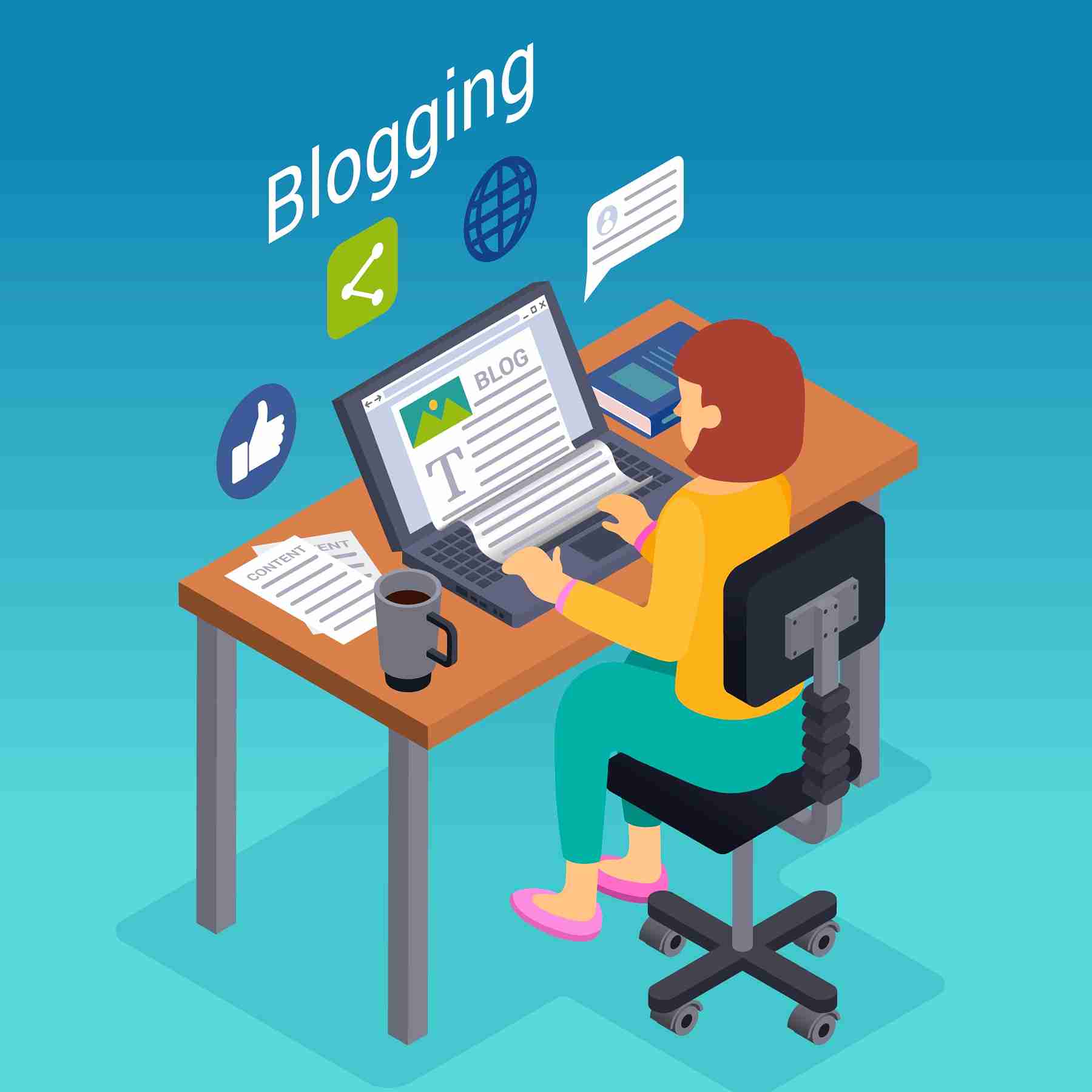
create a blog with WordPress
Learn how to create a blog with WordPress in 2025. This complete WordPress tutorial covers hosting, themes, plugins, and prom….
create a blog with WordPress
How to Create a Blog with WordPress (Beginner’s Guide 2025)
WordPress powers over 43% of all websites on the internet, making it the most popular platform for creating blogs and websites. Whether you want to share your thoughts with the world, build a business blog, or establish your online presence, this WordPress tutorial will walk you through every step of the process.
Creating a blog might seem overwhelming if you’re new to website building, but WordPress makes it surprisingly straightforward. You don’t need coding skills or technical expertise—follow this guide, and you’ll have a professional-looking blog up and running in no time.
This comprehensive WordPress guide covers everything from understanding the basics to promoting your finished blog. We’ll help you make informed decisions about hosting, themes, and plugins while avoiding common pitfalls that trip up beginners.
Step 1: Choosing Between WordPress.com and WordPress.org
Before you create a blog, you need to understand the difference between WordPress.com and WordPress.org. This choice will affect everything from your blog’s customization options to its long-term growth potential.
WordPress.com: The Hosted Solution
WordPress.com is a fully hosted platform where WordPress handles all the technical aspects. Think of it like renting an apartment—everything is taken care of for you, but you have limited control over modifications.
Pros:
- No technical setup required
- Automatic updates and security
- Built-in hosting included
- Mobile apps for easy management
Cons:
- Limited customization options
- Cannot install custom plugins on free plans
- WordPress.com branding on free plans
- Restricted monetization options
WordPress.org: The Self-Hosted Option
WordPress.org provides the software, but you’ll need your own web hosting. This is like owning a house—more responsibility, but complete control over your property.
Pros:
- Full control over your website
- Install any theme or plugin
- Complete monetization freedom
- No platform restrictions
Cons:
- Requires a separate hosting purchase
- You handle updates and security
- Steeper learning curve initially
Our Recommendation: For most beginners serious about blogging, WordPress.org offers better long-term value despite requiring more initial setup.
Step 2: Setting Up Your Hosting Account
If you choose WordPress.org, you’ll need web hosting. Web hosting is like renting space on the internet where your blog files live.
Choosing a Hosting Provider
Look for hosting providers that offer:
- One-click WordPress installation
- Good customer support
- Reliable uptime (99.9% or higher)
- SSD storage for faster loading
- Free SSL certificates
Popular beginner-friendly options include Bluehost, SiteGround, and HostGator. Most offer WordPress-specific hosting plans starting around $3-10 per month.
Domain Name Selection
Your domain name is your blog’s address on the internet. Choose something memorable, relevant to your content, and easy to spell. Most hosting providers include a free domain for the first year.
Tips for domain selection:
- Keep it short and simple
- Avoid hyphens and numbers
- Choose .com when possible
- Make it brandable for future growth
Step 3: Installing WordPress
Most modern hosting providers offer one-click WordPress installation, making this step incredibly simple.
create a blog with WordPress
Learn how to create a blog with WordPress in 2025. This complete WordPress tutorial covers hosting, themes, plugins, and prom….
create a blog with WordPress
Automatic Installation Process
- Log in to your hosting control panel
- Look for the “WordPress” or “Install WordPress” option
- Select your domain name
- Choose a username and a strong password
- Click “Install”
The process typically takes 5-10 minutes. Once complete, you’ll receive an email with your WordPress login details.
Manual Installation (Advanced)
If your host doesn’t offer automatic installation, you can manually install WordPress by downloading it from WordPress.org and uploading the files via FTP. However, this method requires more technical knowledge and isn’t recommended for absolute beginners.
Step 4: Selecting a Theme
Your WordPress theme determines your blog’s appearance and layout. WordPress offers thousands of free and premium themes, so you’ll have plenty of options.
Free vs. Premium Themes
Free themes are perfect for beginners and include:
- Professional designs
- Regular updates
- Community support
- Basic customization options
Premium themes offer:
- Advanced customization features
- Professional support
- Unique designs
- Additional functionality
Choosing the Right Theme
Consider these factors when selecting a theme:
Mobile Responsiveness: Ensure your theme looks good on phones and tablets, as mobile traffic accounts for over 50% of web browsing.
Loading Speed: Choose lightweight themes that load quickly. Site speed affects both user experience and search engine rankings.
Customization Options: Look for themes with built-in customization panels that let you change colors, fonts, and layouts without coding.
Regular Updates: Select themes from reputable developers who provide regular updates and security patches.
Popular Beginner Themes
- Astra: Fast, lightweight, and highly customizable
- OceanWP: Great for various blog types with extensive options
- GeneratePress: Clean, simple, and performance-focused
- Twenty Twenty-Five: WordPress’s default theme for 2025
Step 5: Installing Plugins
WordPress plugins add functionality to your blog without requiring coding knowledge. Think of them as apps for your website.
Essential Plugins for New Blogs
Security Plugins:
- Wordfence or Sucuri for malware protection
- UpdraftPlus for automatic backups
SEO Plugins:
- Yoast SEO or RankMath for search engine optimization
- Google Site Kit for analytics integration
Performance Plugins:
- WP Rocket or W3 Total Cache for faster loading
- Smush for image optimization
Content Plugins:
- Contact Form 7 for contact forms
- MonsterInsights for Google Analytics
Plugin Installation Process
- Go to Plugins → Add New in your WordPress dashboard
- Search for the plugin name
- Click “Install Now”
- Click “Activate” once installation completes
- Configure the plugin settings as needed
Important: Only install plugins you actually need. Too many plugins can slow down your website and create security vulnerabilities.
Step 6: Creating Your First Blog Post
Now comes the exciting part—creating content! WordPress makes it easy to write and publish blog posts.
Using the WordPress Block Editor
WordPress uses a block-based editor called Gutenberg. Each piece of content (text, images, videos) is a separate block that you can move, edit, and customize.
Creating a new post:
- Go to Posts → Add New
- Enter your post title
- Add content using blocks
- Insert images, videos, or other media
- Set categories and tags
- Preview your post
- Click “Publish” when ready
Blog Post Best Practices
Compelling Headlines: Your title should grab attention and clearly indicate what the post covers.
Engaging Introductions: Hook readers with an interesting opening that promises valuable information.
Scannable Content: Use headings, bullet points, and short paragraphs to make content easy to read.
Visual Elements: Include relevant images, videos, or infographics to break up text and illustrate points.
Call-to-Actions: End posts with clear next steps, whether that’s commenting, sharing, or reading related content.
SEO Optimization
Optimize your posts for search engines by:
- Including target keywords naturally in your content
- Writing descriptive meta descriptions
- Using header tags (H1, H2, H3) to structure content
- Adding alt text to images
- Creating internal links to other relevant posts
Step 7: Promoting Your Blog
Creating great content is only half the battle—you need to promote your blog to attract readers.
Social Media Marketing
Share your posts on platforms where your target audience spends time:
- Facebook for community building
- Twitter for quick updates and engagement
- LinkedIn for professional content
- Instagram for visual content
- Pinterest for lifestyle and how-to content
Email Marketing
Build an email list from day one. Email subscribers are more valuable than social media followers because you own that relationship. Consider plugins like Mailchimp or ConvertKit to manage your email list.
Content Marketing Strategies
Guest Posting: Write articles for other blogs in your niche to reach new audiences and build backlinks.
Comment on Other Blogs: Engage with other bloggers in your industry by leaving thoughtful comments on their posts.
Join Online Communities: Participate in relevant Facebook groups, Reddit communities, or industry forums.
Collaborate with Other Bloggers: Partner with fellow bloggers for interviews, round-up posts, or joint projects.
SEO for Long-term Growth
Search engine optimization helps people find your blog through Google and other search engines:
- Research keywords your audience searches for
- Create helpful, comprehensive content around those topics
- Build backlinks from reputable websites
- Optimize your site’s technical performance
- Maintain a consistent publishing schedule
Your WordPress Journey Starts Now
Starting a blog with WordPress doesn’t have to be complicated. By following this WordPress tutorial, you now have the foundation to create a professional blog that can grow with your goals.
Remember that successful blogging is a marathon, not a sprint. Focus on creating valuable content for your audience, engaging with your community, and staying consistent with your publishing schedule. Your blog’s success will build over time as you develop your voice and establish authority in your niche.
Ready to take the next step? Download WordPress from WordPress.org and choose a hosting provider to begin your blogging adventure. With the knowledge from this WordPress guide, you’re well-equipped to create something amazing.
create a blog with WordPress
Learn how to create a blog with WordPress in 2025. This complete WordPress tutorial covers hosting, themes, plugins, and prom….
